
VPS for Android TV
VanyaVPS works on Android TV version 10 and up, whether it’s built into the TV or comes in a set-top box. There’s no email to type with the remote. The TV shows a code, and you approve the sign-in on your phone.
- Android TV 10 and newer
- version 1.21.1
- 77.4 MB
You can start with the trial: 3 days for $0.50
Getting the app onto your TV
The simplest route is Google Play on the TV itself. The store shows the app’s Russian name, so search for Дядя Ваня. It’s the same listing as the phone app, and updates arrive the usual way.
A box without Google Play can take the APK file instead. You’ll find it under the button above, along with a copy on Yandex Cloud for when the main link won’t open. Make sure it’s the TV file. The phone APK shares the package name and would replace the TV version.
Once installed, the app shows up on the TV’s home screen as a red tile with the yellow logo.
A code instead of an email
On first launch the TV displays a nine-digit code under “Sign in with your phone”, together with a web address and a QR code. The code changes every 10 minutes. If you don’t have an account yet, scan the QR code on the left side of the screen to open the website and subscribe.
In the phone app
On your phone, open Account in the app, pick the sign-in option for another device and then Sign in on TV. Type the digits from the TV screen and tap Approve sign-in. If there’s no Sign in on TV button, update the phone app.
On the website
Point your phone’s camera at the QR code next to the digits, or type the address shown on the TV into a browser on any device. Log in there and approve the request. Your account page has the same form under Sign in on TV.
Once you approve, the TV signs in by itself within a few seconds. Guest accounts don’t work on a TV, so link an email on your phone first (Account → Link e-mail) and then approve the code. If the TV asks you to type eight digits, it’s running an old version of the app. Update the app through Google Play, or install the current APK over it.
There’s also a step-by-step Android TV guide with screenshots, written in Russian.
What the TV app can do
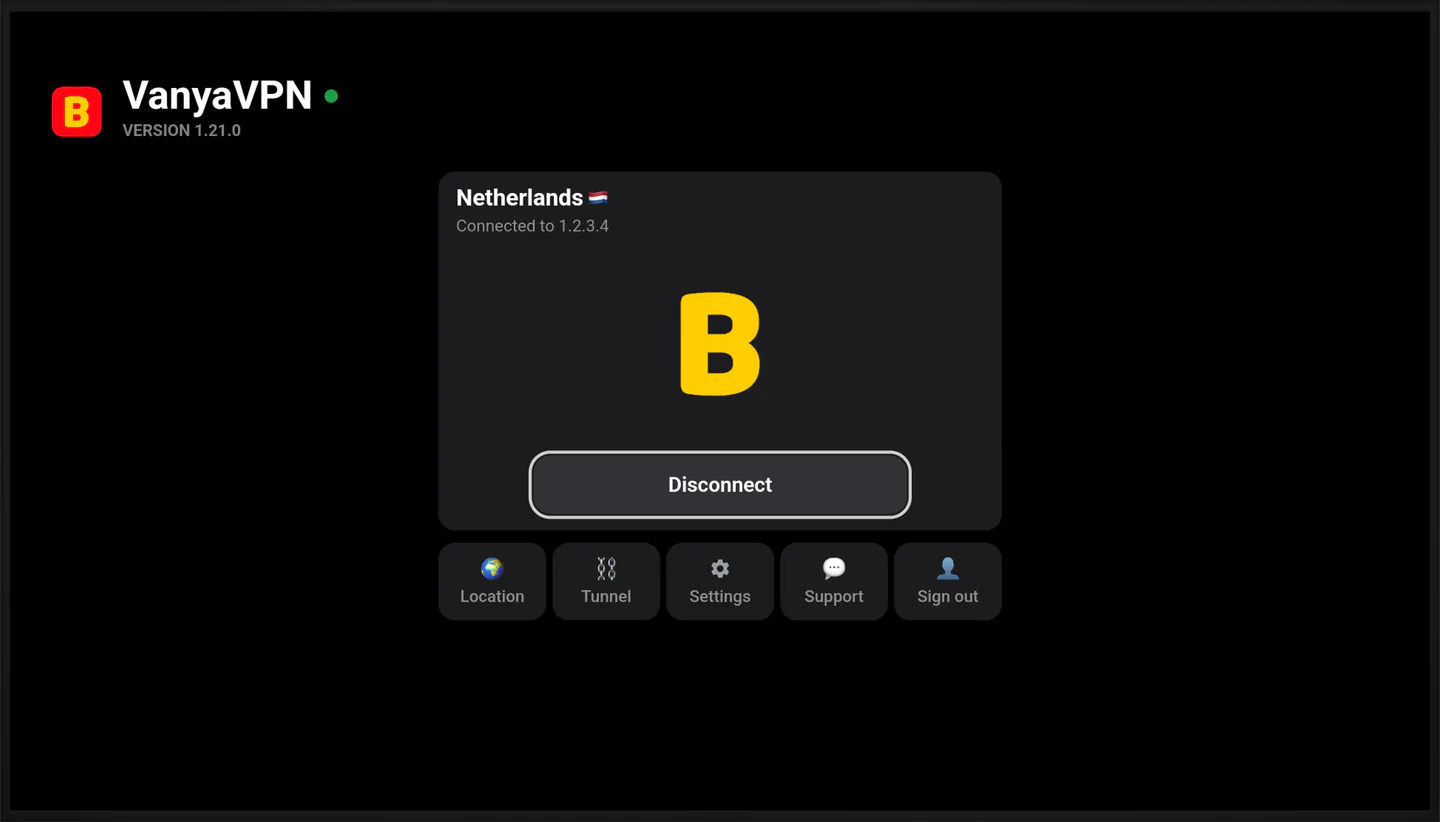
The home screen has a card with your current country and the Connect button, plus five tiles underneath. Location is where you pick a country. Tunnel offers two modes on a TV. With Off, all of the TV’s traffic goes through the VPS. For Russia keeps Russian services outside it, so they connect directly. The manual list of addresses from the phone app isn’t available here.
Settings holds the interface language, the mirror and technical information. Support displays a QR code, and scanning it with your phone opens a chat with us. Sign out removes the account from the TV. To get back in, approve the new code it shows.
There are no purchases inside the app. Without an active subscription, the TV shows a QR code for paying on the website, and the screen refreshes on its own once the payment goes through.
Questions before you set up the TV
Will it work on my TV or box?
Any TV or box on Android TV version 10 or newer will do, Google TV models included, since Google TV is built on top of Android TV. On version 9 and older the app won’t install.
I have a Samsung or LG TV. Any options?
Samsung uses Tizen and LG uses webOS, and VanyaVPS doesn’t make an app for either system. You can set up the VPS on your router, which covers every device at home, or plug an Android TV box into the TV and run the app from it.
My TV has version 1.20. How do I update?
If it came from Google Play, the new version arrives as a regular update. If you installed the APK, download the current file and install it over the old one, and the app’s data stays. If the TV shows a sign-in code after the update, confirm it in the phone app.
How many devices does one plan cover?
There’s no limit. The TV, your phones and your computers can all use the same account at the same time.
One plan for the TV and everything else
VPS for Android TV is included in every plan. The TV uses the account you already have on your phone and computer, so it doesn’t need a separate subscription.
-
2 years
-
Year
-
6 months
- Month No bonus months $5/mo

The “Vanechka” trial
3 days with every country for $0.50, once per account. After that it continues month to month, and you can turn renewal off in your account.
If it does not work for you, we refund the payment under our refund policy.